Problem: When dragging a layer with custom Global Light setting to different document, it will reset to either default degree (-120°) or 30°. Other documents will not honor layer’s original light setting.


Dragging a layer from one document to other will reset layer’s Global Light setting

Workaround: Turn off Use Global Light checkbox in Layer Option window in every layers you want to preserve lighting setting before moving to different documents or sending the PSD file to someone else.

Not the best workaround but this is something that annoyed the hell out of me especially when someone move my PSD layers to different document and save/print without realizing the change in global lighting or if you want to save a specific layer style as style preset in Style palette. Adobe could easily fix this by adding a dialog that warn user “Do you want to change current document’s global light setting to match the layer you dragged in?” and OK/Ignore buttons when dropping a layer from different document.


Icon above was originally designed for an upcoming RSS Reader software.

New blog design for my brother’s company Mösdeux.

Mösdeux’s Behind the Scene Blog

Check the blog in action. You’ll see that I locked the floor to bottom of browser window all the time and the reason for this is to give blog site a production-ish feeling. In movie you rarely see floor but characters and objects all the time and in production you’ll notice floor the most with lot of guide tapes, boxes, equipments, wires, etc. The big black poster behind the body content is a “flip-side” of original Mösdeux blog design.

I’m eagerly looking forward to seeing the progression of this huge film project. They got some of the best people and more people will be coming over the days including a dedicated sound team.

Check the photos and you’ll be proud to see so many Macs being part of the project :)

Don’t Cut or Die

From a Philips product I bought today

Adiumy has finally left the beta nest.
Download Adium 1.0 final from www.adiumx.com.


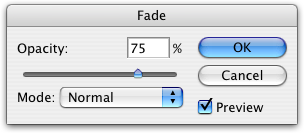
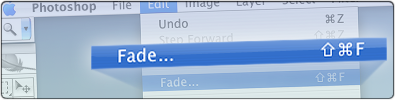
In Photoshop, go to Edit > Fade… or Command-Shift F

Of millions tools you can use in Photoshop, Fade is my third most used tools for one simple reason: it will make your work look subtle and professional. When you does an one time change to your layer that you liked but felt that it was too strong and bold, you can get it to halfway between original one and changed one by just setting Fade opacity to 50% in Fade window pictured below.

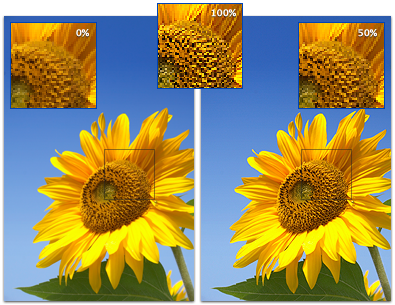
The best example I can give you about the effectiveness of this tool is by comparing two same images, one’s original and other one’s sharpened (PS Filter). Sharpened one is too much to my eyes so I went for 50% to get details to stand out while not looking too abused:

It doesn’t have to be for pixel art only, it can be for anything such as digital photograph:

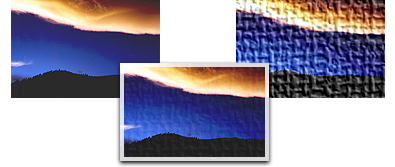
Or more extreme example using Texturizer (Burlap) Filter to create crumpled photograph paper:


Fade opacity is set to 30% and Mode is set to Overlay.

You can use Fade tool with almost every filters, adjustments, etc. Mode option found in Fade window is rarely useful for me since I prefer to do it via separate layers with layer mode on so I can change layer mode anytime I want to in the future instead of it being permanent.

One thing worth noting is that the usefulness of this tool will be less with upcoming Smart Layer in Photoshop CS3 but Fade will always have its place in Photoshop for a quick and dirty job.

Delicious Generation

T-Shirt PreviewA light-hearted poke at Paul Kafasis’ blog post about the Delicious Generation.
Since Disco was one of the most controversial app that spawned a heated discussions about flash & sizzle apps vs. plain but functional apps, there’s no other better symbols to use for “Delicious Generation” than Disco’s app icon and one of its snazzy features; smoking effect on top of window during CD burning. With upcoming Core Animation which will be in Mac OS X 10.5, it couldn’t get any more delicious.

Several people will be wearing the t-shirt at Macworld Expo 2007. Interested in buying the t-shirt? Send an email to directorate@macheist.com with “Delicious Generation T-Shirt” in subject line.

[Update: You will be seeing a different version of this logo at Macworld. It will be simplified and made to be fully vector due to printing restriction at their selected t-shirt manufacturer. Pe8er is handling the artwork flattening and conversion to vector.]

Credit: Disco ball artwork from Jasper Hauser and Hugo van Heuven. Used with permission.


Click for larger version

This is what happens when you let the marketing team takes over the graphic designing.

Read more about it here.

[Thanks George Dorn for the link]


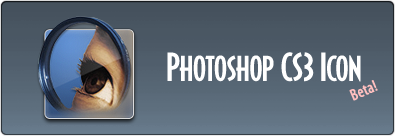
Icon Replacement for Adobe Photoshop CS3 Beta.

Apparently the current icon for PS CS3 beta is final and will not change for release according to a brief email I got from one nice Adobe staff. So I asked PS CS3 to put some pixels together to make a temporary icon, she agreed.

I love PS 7 icon for its eye and len but I also love PS CS1/2 icons for its simplicity so why not merge them both together with Photoshop CS3’s blue background color.

Also included is a PS CS3 document icon.


Photoshop 3.0 to CS3 Beta Icons

An interesting icon change for CS3.

I’m going to say it calmly; I certainly hope it is not the final icon design.